 Generato
Realistic VRChat avatar from a photo
Upload one full-body photo, or describe a character, and Generato builds a photoreal 3D avatar of that person, rigs it and lets you download it as an FBX for Unity. There is a PC version and a 10,000-triangle Quest version that stays within VRChat's "Good" performance rank, so people on Quest can see you too.
Make your VRChat avatar — free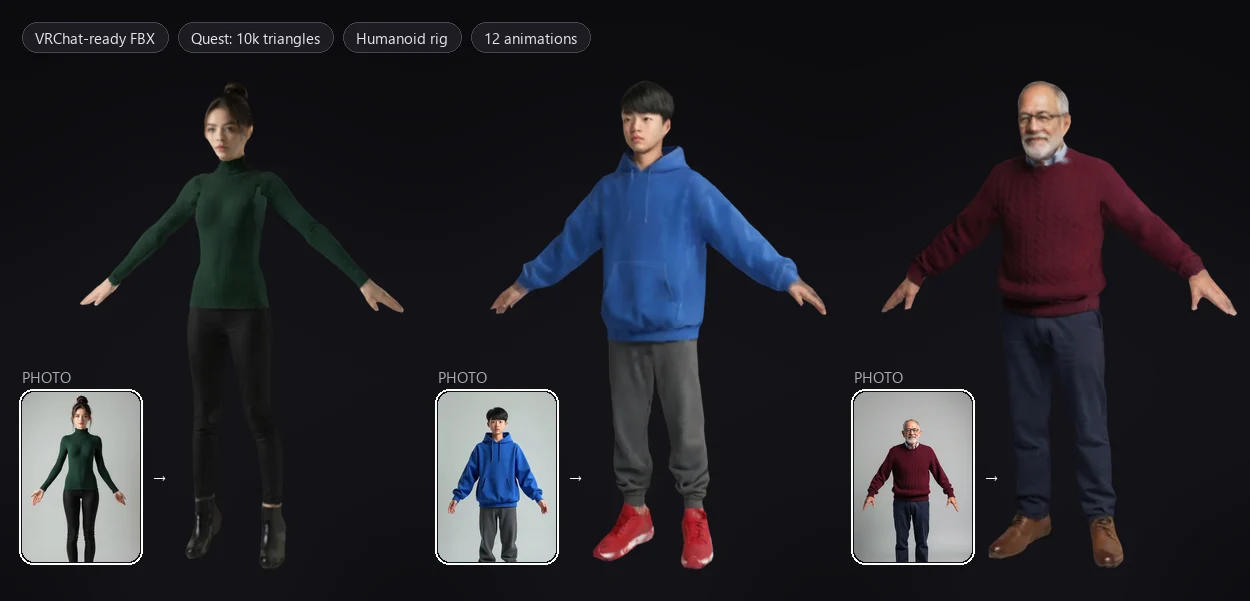
From photo to VRChat in four steps
- Make the avatar. Upload a full-body photo of yourself (head to toe, arms a little away from the body), or describe a character in a sentence. The 3D avatar is ready in about 3–4 minutes, rigged automatically.
- Download the FBX. In your library, press download and pick For VRChat on Quest (10,000 triangles, works on PC too) or For Unity and VRChat on PC (60,000 triangles). The first export takes about a minute.
- One click in Unity. Import the free Generato Avatar Tools package into a VRChat avatar project and drag in the FBX. The Generato Avatars window opens by itself: pick your avatar and click Add to Scene and Set Up for VRChat. It sets the Humanoid rig, the import settings the VRChat SDK asks for, a Quest-safe material and the view position between the eyes.
- Build & Publish. Open the VRChat SDK control panel and publish, for Windows, Android (Quest) or both.
Step-by-step: from a new Unity project to VRChat
Everything below was tested with Unity 2022.3.22f1 and the VRChat Avatars SDK 3.10.6. Your VRChat account needs the New User trust rank or higher to upload avatars.
1. Create a VRChat avatar project
- Install the VRChat Creator Companion (VCC). It installs Unity 2022.3.22f1 for you through Unity Hub if you don't have it.
- In the VCC, choose Projects › Create New Project, pick the Avatars template, give it a name and click Create Project.
- Click Open Project. Unity opens with the VRChat SDK installed.
2. Add Generato Avatar Tools
- Download GeneratoAvatarTools.unitypackage (a small editor script, free).
- Drag it into Unity's Project window (or Assets › Import Package › Custom Package) and click Import. The Generato Avatars window opens (you can always reopen it from Tools › Generato › Avatars).
3. Import your avatar
- Drag the
generato-avatar-….fbxyou downloaded into the Project window, or click Import Avatar FBX… in the Generato window and pick it from your Downloads folder. - It imports as a Humanoid avatar with Read/Write enabled and legacy blendshape normals, so the VRChat SDK's import errors don't come up.
4. Set it up for VRChat
- In the Generato Avatars window, every Generato avatar in the project is listed with a preview you can drag to turn. Pick yours and click Add to Scene and Set Up for VRChat. No need to drag it into the scene yourself; if it is already there, the tool sets up that one.
- The tool extracts the texture (streaming mip maps, Kaiser filter), makes one VRChat/Mobile/Toon Lit material (allowed on PC and Quest), places the avatar in the scene and adds a VRC Avatar Descriptor with the view position between the eyes.
- If the camera height feels off in VRChat, adjust View Position in the VRC Avatar Descriptor.
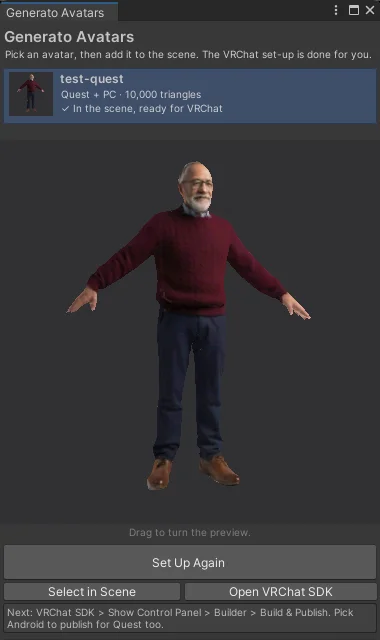
The Generato Avatars window after set-up: the avatar is in the scene and ready for VRChat.
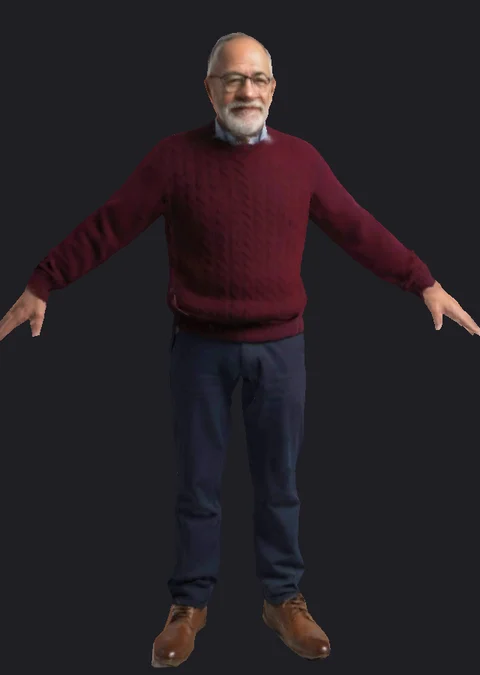
The result in Unity: the avatar in its A-pose with the Toon Lit material, ready to publish.
5. Build & Publish
- Open VRChat SDK › Show Control Panel and sign in.
- On the Builder tab, give the avatar a name and a thumbnail.
- Under Platform(s), choose Windows, Android or both, then click Build & Publish. Unity switches platforms for you; the first Android build takes a few minutes.
- In VRChat, open Avatars › Uploaded and put your avatar on.
Using the 10k Quest FBX for both platforms keeps one avatar and one upload: it rates "Good" on Quest and "Excellent" on PC.
Built for VRChat's performance ranks
Quest "Good" rank
The Quest version has 10,000 triangles, one material and 24 bones, within VRChat's "Good" limits for mobile. Quest hides avatars ranked below Medium by default, so this matters.
PC version
60,000 triangles and one material: within the PC "Good" limit of 70,000 triangles, with more detail in the silhouette.
Humanoid-ready skeleton
Hips, Spine, LeftArm, LeftUpLeg and the rest: Mixamo bone names that Unity's Humanoid rig recognises, plus a twist bone in each forearm.
Realistic, from your photo
The face, hair and clothes come from your picture. The texture is painted from the full-detail avatar, so even the Quest version keeps the face.
Opens in an A-pose
The file opens standing still in its rest pose, with 12 animations (idle, walk, jog, sprint, wave, dance and more) as separate clips.
Good to know
- Uploading goes through Unity. VRChat has no public upload API, so every custom avatar is published with the VRChat SDK in Unity. The Generato FBX and the free Avatar Tools package make that a few clicks.
- No lip sync or blinking yet. The face doesn't have the mouth and eye shapes VRChat uses for visemes and blinking, so the mouth won't move when you talk.
- Hands move as one piece. Fingers aren't rigged separately, so finger gestures from controllers won't show.
- Lighting is baked in. The texture keeps the light from your photo; an unlit or toon shader shows it most faithfully.
- The back is generated. One photo shows the front; the sides and back are the model's best guess and won't match the real person exactly.
- Only use your own likeness, or that of someone who has agreed to it. See the Terms & Conditions.
Frequently asked questions
Can I use a Generato avatar in VRChat?
Yes. Download it as an FBX, import it into a VRChat avatar project in Unity, set the rig to Humanoid, add a VRC Avatar Descriptor and publish it with the VRChat SDK.
Does it work on Quest?
Yes. Choose "For VRChat on Quest" when downloading: that version has 10,000 triangles, one material and 24 bones, within VRChat's "Good" rank for mobile, so Quest players see it by default. Build it for Android with a VRChat Mobile shader.
How realistic is it?
It is made from your photo, so the face, hair, skin and clothes look like you. The Quest version is lighter but keeps the same texture, so it stays recognisable up close.
Can I upload it to VRChat straight from the website?
No. VRChat only accepts custom avatars uploaded with its SDK in Unity. The Generato FBX and the free Generato Avatar Tools package for Unity set everything up in one click, so publishing takes a few minutes.
Do I need to set up the rig, materials and view position myself?
No. Import the free Generato Avatar Tools package into your VRChat project, drag in the FBX and click Add to Scene and Set Up for VRChat in the Generato Avatars window that opens. It sets the Humanoid rig, the import settings the VRChat SDK checks, a Quest-safe material and the view position.
Does the mouth move when I talk?
Not yet. The avatar has no viseme or blink shapes, so lip sync and blinking are not set up.
What does it cost?
An avatar uses 5 credits, and new accounts start with 5 free credits, enough for one. Downloads, including the FBX, come with any plan bought at least once; credits are one-time packs that never expire.
Which file formats do I get?
FBX for Unity and VRChat (PC and a 10k-triangle Quest version), GLB for Blender, Godot, Unreal and web engines, and the original 3D Gaussian splat for three.js.
Can I sell the avatar or its files?
You can use your avatar in your own projects. Reselling or redistributing the avatar files themselves is not allowed.
More from Generato
Make your VRChat avatar
Start with free credits. No subscription, no install — it runs in your browser and on Meta Quest.
Open Generato